1. Logging into Setworks | 
|
2. Accessing the Individual Tab - Access the Individual Tab
- Search for the Individual
- Select the Individual
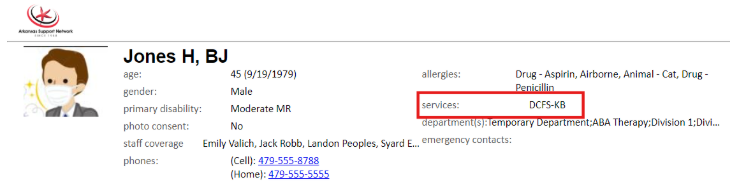
- Locate the Individual's PASSE in the Individual’s Setworks profile under the Description box
- Review and take note of the Individual’s Service Type as you will need to enter it into the Activity Record
|  |
3. Creating an Activity Record - From the Home page click the drop-down menu on the right of the screen and select Activity Record
- DO NOT select Activity Record (Appointment)
Setworks Homepage
| 
|
4. Date and Time | 
|
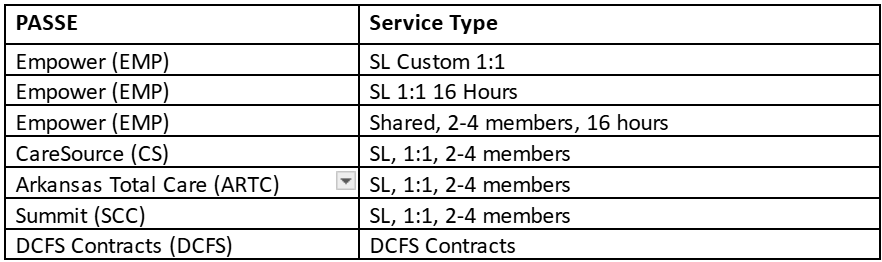
5. Service Type - Select the Service Type using the information provided below
Examples:- SL 1:1, Arkansas Total Care
- Summit
- Caresource
SL 1:1 - Empower
| 
 |
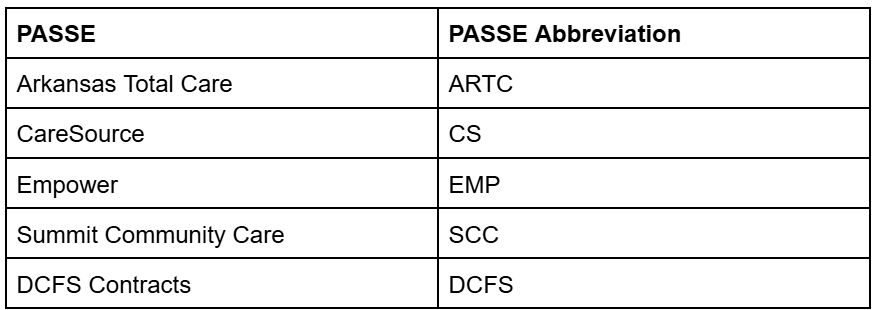
6. Update Description with PASSE Abbreviation - Enter the Individual's abbreviated PASSE using the tale provided to the right below
|  
|
7. Set Default Time Enter the shift you will be supporting the individual for Be sure to differentiate AM-to-PM shifts The default time you select will automatically populate the time for Staff Attendance and Individual Attendance
| 
|
8. Staff Attendance - Search for your name in the search bar
- Select your name
- Verify the time for Set Time Default is the same for Staff Attendance
| 
|
9. Individual's Attendance - Search for the Individual(s) you will be supporting during the shift
- Select the Individual(s) you will be supporting during the shift
| 
|
10. Review Times - Verify all Times match and are for the same Time Period
| 
|
11. Save Appointment | 
|